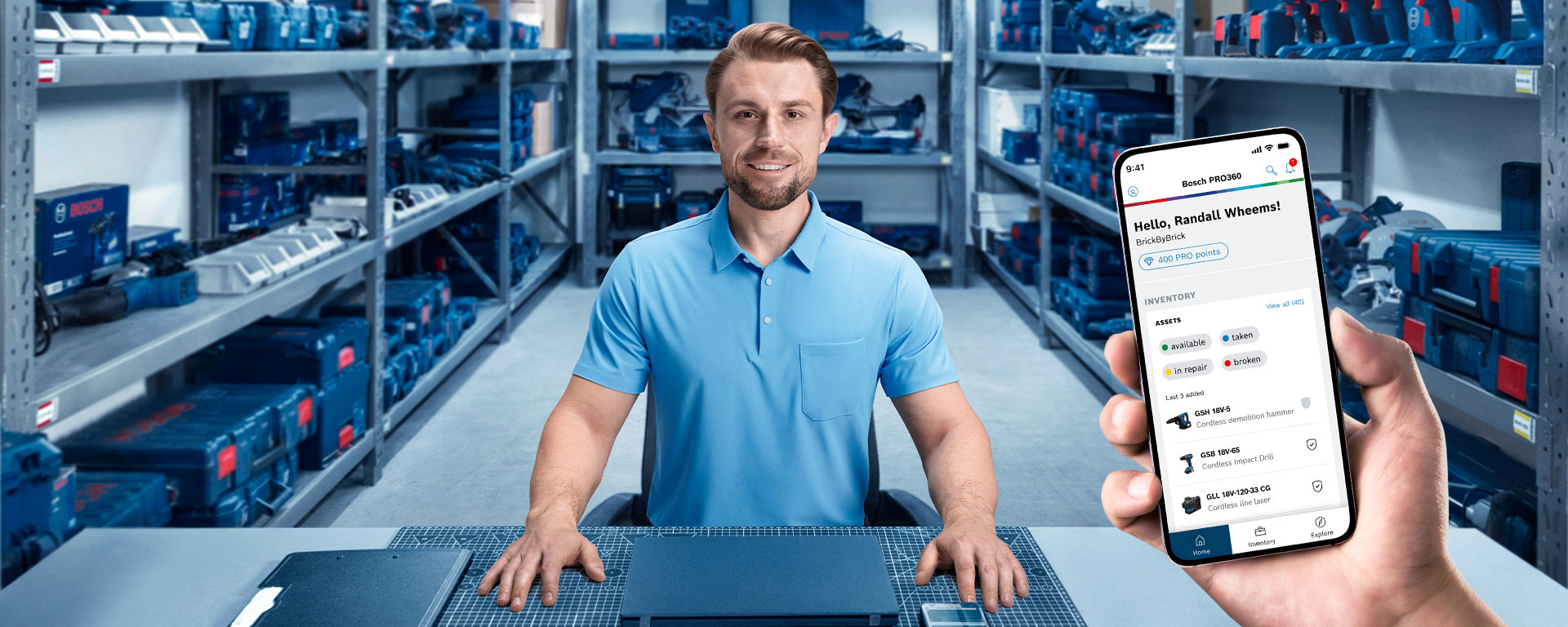
A man in a blue shirt is sitting at a table in a warehouse with tools in the background.

Work The Easy Way

Simplify inventory, service & work management.

WHAT IS PRO360?

PRO360 is your free, convenient and efficient access portal for numerous services from Bosch Professional. Register once and then benefit continuously from all current and future services, e.g. the free extension of your tool warranty from 1 year to 3 years.
What are the advantages of PRO360?

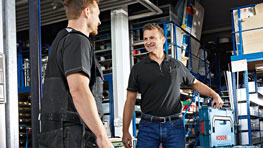
Two men in work clothes are standing in a warehouse with tools.
JUST ONE PASSWORD

Only one login for all services.

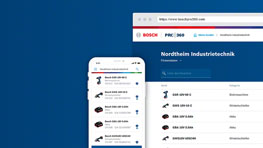
A smartphone displays the Bosch Professional website with tools.
EVERYTHING AT A GLANCE

The digital tool list provides you with a perfect overview of your tools and your warranty – whether you are on the move or at the PC.

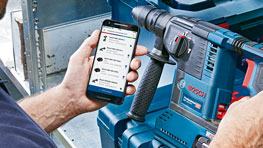
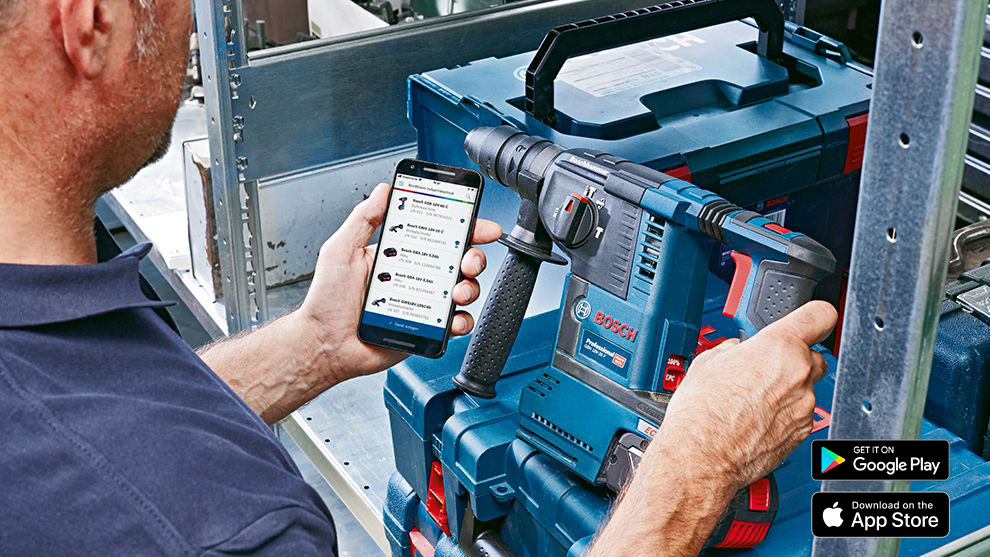
A person is using a smartphone next to a blue Bosch Professional tool.
EVERYTHING IS SIMPLER

You can simply scan nameplates with your mobile phone camera to transfer your tools instantly into your digital inventory list hassle free.

Two men in work clothes are showing a Bosch Professional tool.
BENEFIT IN THE FUTURE

In future updates many more service offers will become available to you via PRO360

WHAT DOES PRO360 HAVE TO OFFER?

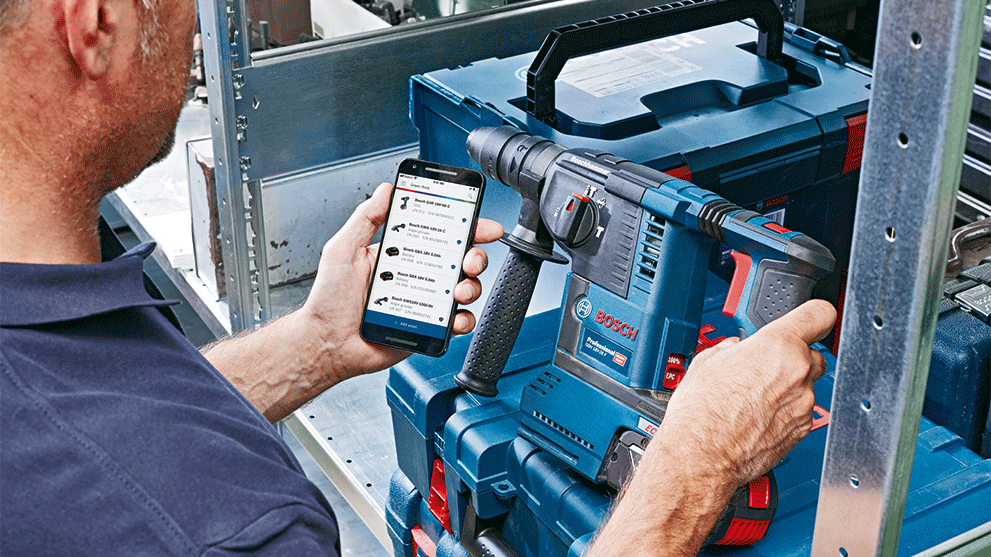
A man holds a smartphone and a Bosch Professional drill.
Manual asset registration

Assets from Bosch Professional and other manufacturers can be added to the asset list by manually entering the asset data (brand, product number/name, optionally category and serial number).


A man in a safety vest holds a Bosch Professional circular saw on a construction site.
Asset registration via type plate scan

Bosch Professional assets can be added to the asset list via type plate scan. To do this, the type plate of the asset must be scanned with the smartphone camera via the PRO360 mobile app. The asset data is automatically captured and the asset is added to the asset list.


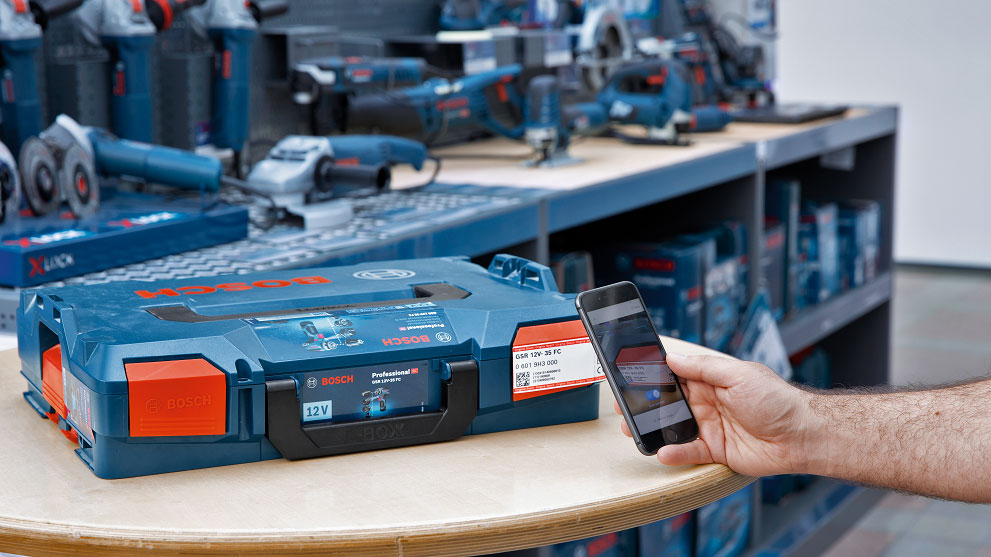
A person scans a blue toolbox on a table with a smartphone. In the background, there are more tools.
Asset registration via packaging scan

Tools and kits from Bosch Professional can be added to the asset list via packaging scan using a Data Matrix code. To do this, the assets do not have to be removed from their original packaging, as the DMC on the security label of the packaging can be scanned with the smartphone camera via the PRO360 mobile app. This allows an entire kit with associated asset data to be added to the asset list at once.


Asset bulk-registration via list import

Several assets from Bosch Professional and other manufacturers can be added to the asset list at once by uploading an inventory list. To do this, a list template must first be downloaded from PRO360, into which the asset data is then inserted. By uploading the list in the desktop version of PRO360, the assets with associated asset data are added to the asset list.


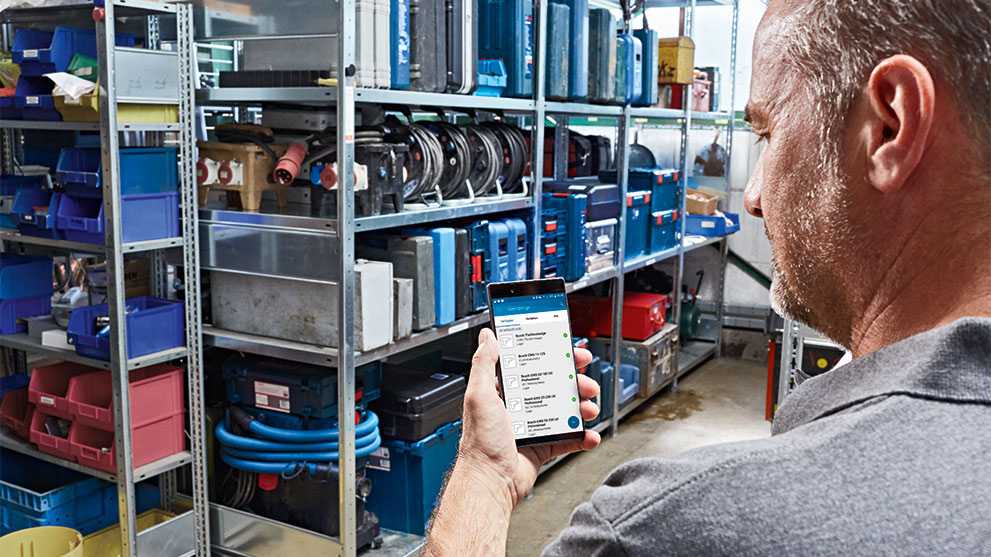
A man in a light blue polo shirt is looking at his smartphone, surrounded by shelves with toolboxes.
Registration of extra warranty

For Bosch Professional tools, batteries and chargers, the warranty period can be extended to over 1 year in just a few steps in PRO360. The warranty certificate is saved in the app so that it can be downloaded in the event of a warranty claim.


A Bosch Professional cordless screwdriver stands next to a construction worker with a phone.
Configure the settings for BluetoothĀ® and NFC-enabled devices via app

Customised settings can be made for BluetoothĀ® and NFC-enabled devices via the mobile PRO360 app. Depending on the device segment, the working light, performance or speed level, for example, can be individually set and saved.


A craftsman wearing a yellow helmet and green vest smiles and gives a thumbs up while holding a drill. Another man in a blue polo shirt looks at his smartphone. In the background, there are shelves with blue toolboxes.
Joint asset list management by customer and dealer

Asset lists created by the dealer can be shared with the owner of the assets in just a few steps. The assets registered by the dealer can then also be viewed and managed at the customer's account.


Assign access rights to employees

The employee creation is possible if you have a dealer or company account. Users with an individual account do not have the possibility to create employees.


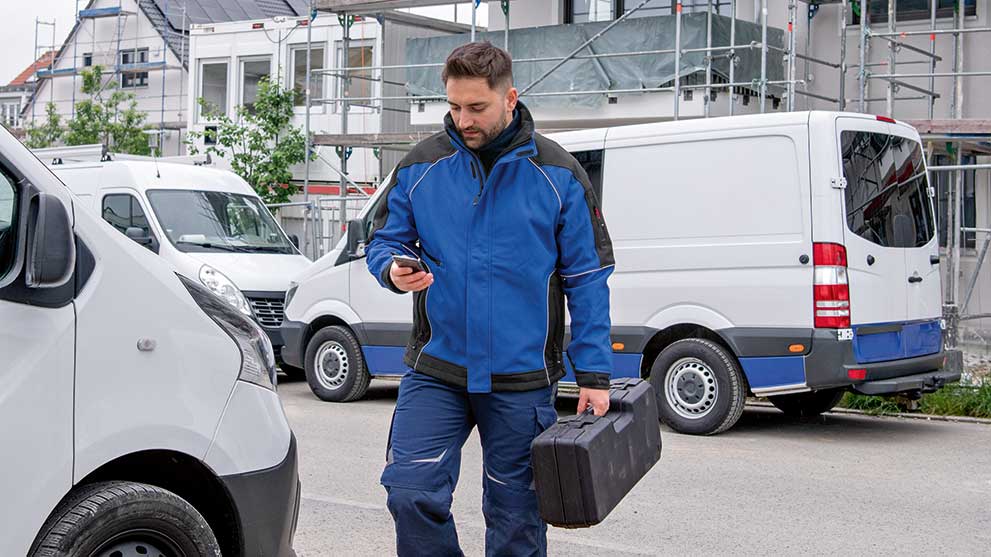
A man in a blue work jacket is walking with a toolbox to a construction site.
Enter location to assets

Individual locations, such as construction sites, can be added to the assets during the registration process as well as afterwards and changed at any time. Assets can be found via the location using the search function.


A man with a beard and blue vest gives a thumbs up in a room full of tools and boxes.
Assign assets to employees

Assets can be assigned to an employee in a company account. This makes it possible to see at any time which employee is using or managing which asset. Assets can be accessed via the assigned employees using the search function.


Three men in work clothes stand in a warehouse full of blue toolboxes. The man on the right, wearing a light blue polo, is looking at his phone. The others are wearing yellow helmets and reflective vests. The mood is friendly and cooperative.
Enter individual notes to assets

Individual notes can be added to the assets during the registration process as well as afterwards and can be changed at any time.


A man is looking at a smartphone in a tool storage.
Enter inventory numbers for assets

The assets are automatically assigned an inventory number during the registration process. This number can also be customized individually. Assets can be found via the assigned inventory number using the search functions.


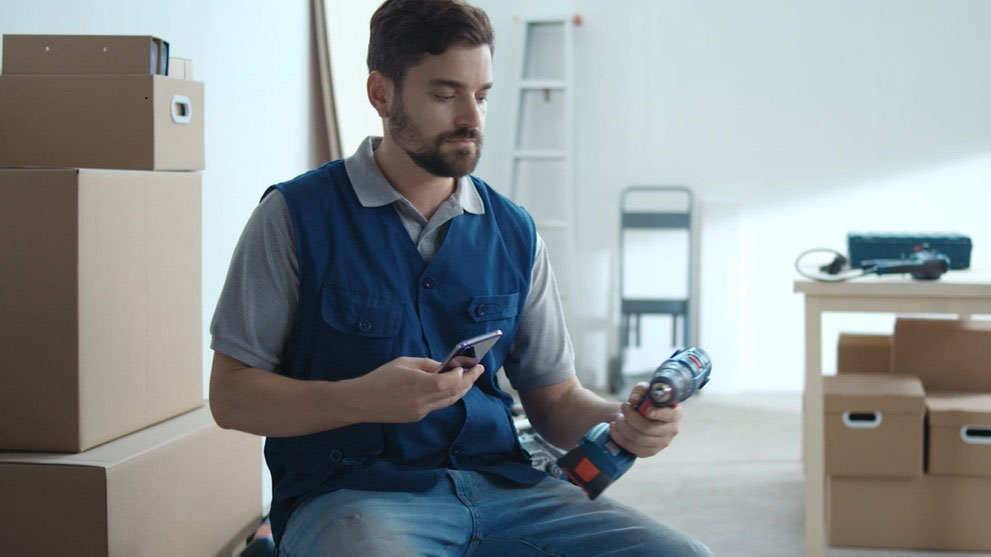
A man in a blue vest is sitting on the floor holding a power drill and a smartphone. In the background, there are boxes and a ladder.
Upload invoice to assets

The invoice for the assets can be uploaded during the registration process as well as afterwards (in JPEG, PNG and PDF, max. 10 MB). In case of guarantee or service, all required documents are stored in one place.


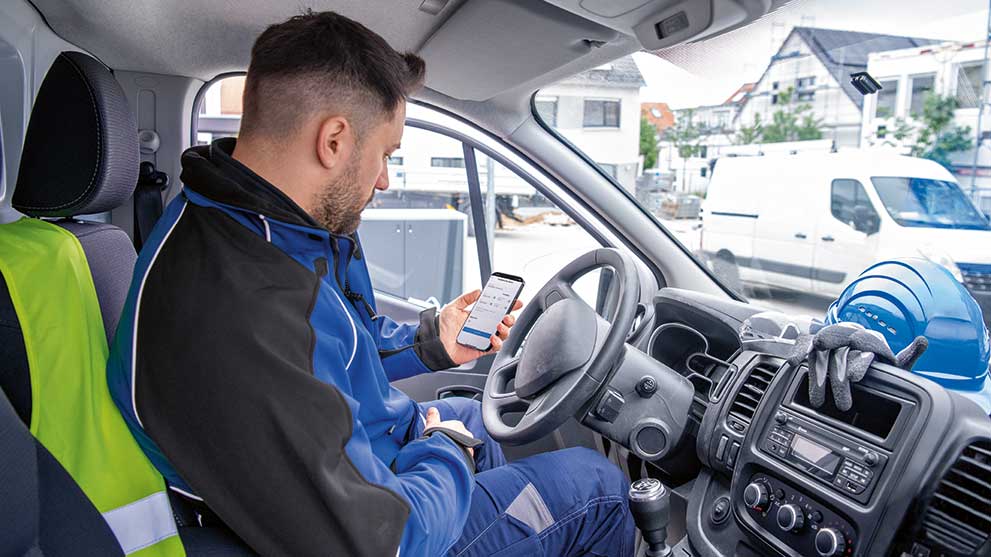
A man in a blue work suit sits in a van and looks at his smartphone.
Set availability status of assets

An availability status can be set manually for the assets (available, taken, in repair, broken, stolen, unknown).


Set-up custom tasks

Tasks can be set up for the assets, such as maintenance or cleaning of the assets with deadlines and reminders. These can also be repeated on individually defined dates. They can be created and edited in just a few steps using the PRO360 mobile or desktop app.


A man in a blue shirt stands at a table, looking at his smartphone. Around him are boxes, a toolbox, and a workbench in the background.
Discover Bosch promotions, new launches, and exclusive activities anytime.

Register your Bosch tools to earn loyalty points, redeem rewards, and stay up to date—all in PRO360 Explore.


IT'S AS EASY AS THIS
Symbol of an application on a blue background, with a person and text.
1.
Create a PRO360 user profile one time

Creating a user profile for the first time >

White document icon with plus sign on blue background.
2.
Registering Tools & Service
Symbol of a magnifying glass over a document on a blue background.
3.
Enjoy Rewards & Benefits

Stay up to date and make the most of all PRO360 benefits.

A man holds a smartphone and operates a Bosch Professional drill.
WHERE DO I GET THE PRO360 APP?

You can log in to this page at any time.

Free download in Google Play Store*
Free download in Apple App Store*
You have questions on PRO360?

You can reach us at the following service times:

Monday - Friday

08.00 - 17.00 hours

Find a dealer near you

ZIP code, City or Street
Want to know more?

For more information about PRO360 features and offers, visit our Help Center.

Visit now

*Google Play and the Google Play logo are brands of Google LLC.

*Apple and the Apple logo are brands of Apple Inc.